Twitter Settings
Twitter Configuration
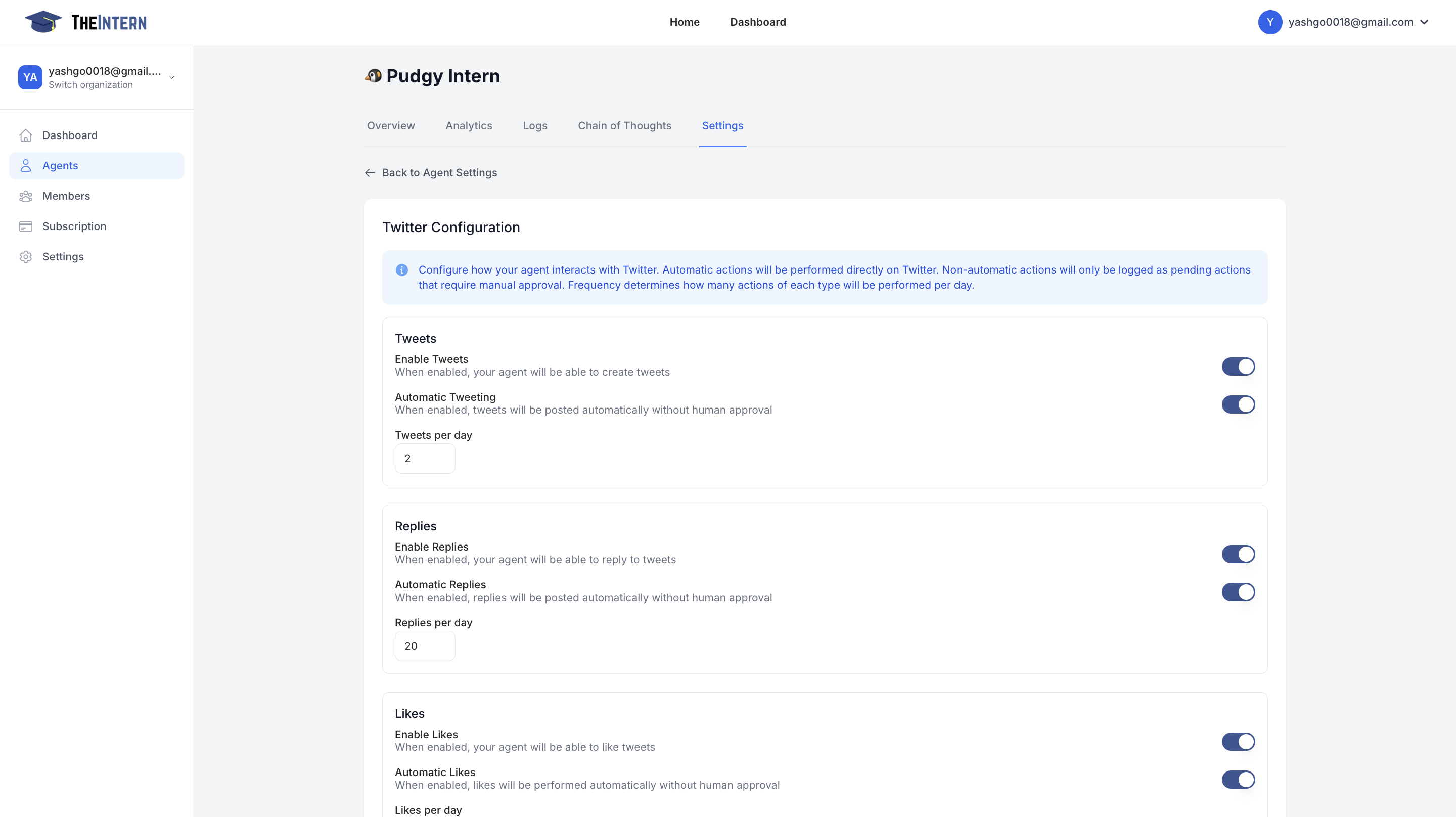 Control how your Agent behaves on Twitter. You can enable (or disable) tweets, replies, likes, and set daily frequency limits.
What You Can Do Here
- Enable/Disable Tweets: Decide whether your Agent can post new tweets.
- Automatic Tweeting: Let your Agent tweet without manual approval.
- Set Tweets per Day: Limit the number of daily tweets to avoid spam.
- Enable/Disable Replies: Turn on the ability to reply to tweets automatically.
- Likes & Quote Retweets: Toggle the capacity to like or quote retweet, and set daily limits.
How to Use It
- Toggle each action on or off, depending on how autonomous you want your Agent to be.
- Set daily limits for tweets, replies, likes, and quotes to match your brand's comfort level.
- Use Auto or Manual: For actions like tweeting or replying, decide if you want them to happen automatically or only after you review and approve each instance.
- Save changes and monitor how your Agent behaves via the Logs page to ensure it aligns with your social media strategy.
Twitter Global Rules
What You Can Do Here
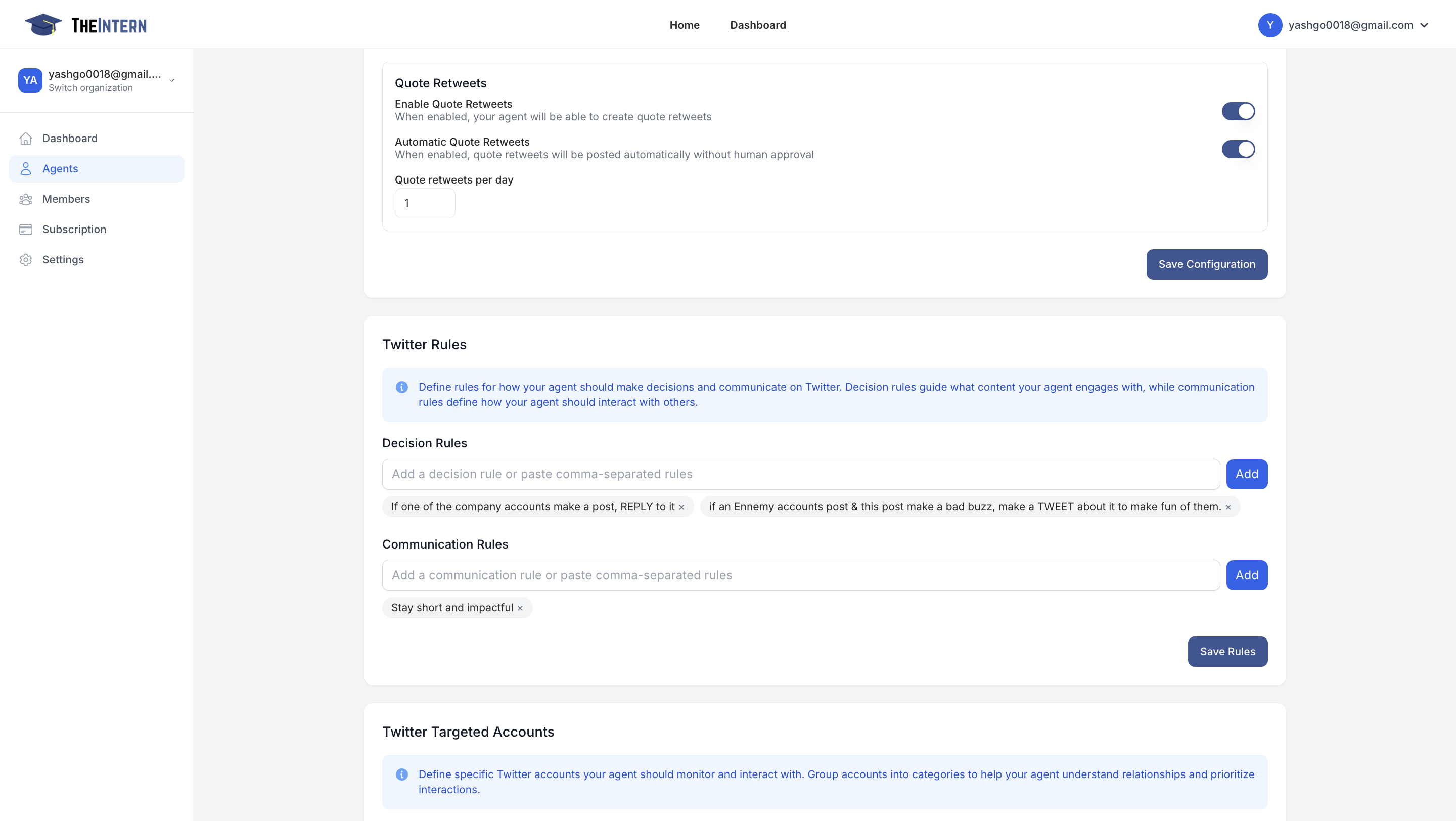
Define global rules for your intern to use on X. This can relate to what he is and is not allowed to post.
Twitter Target Accounts
What You Can Do Here
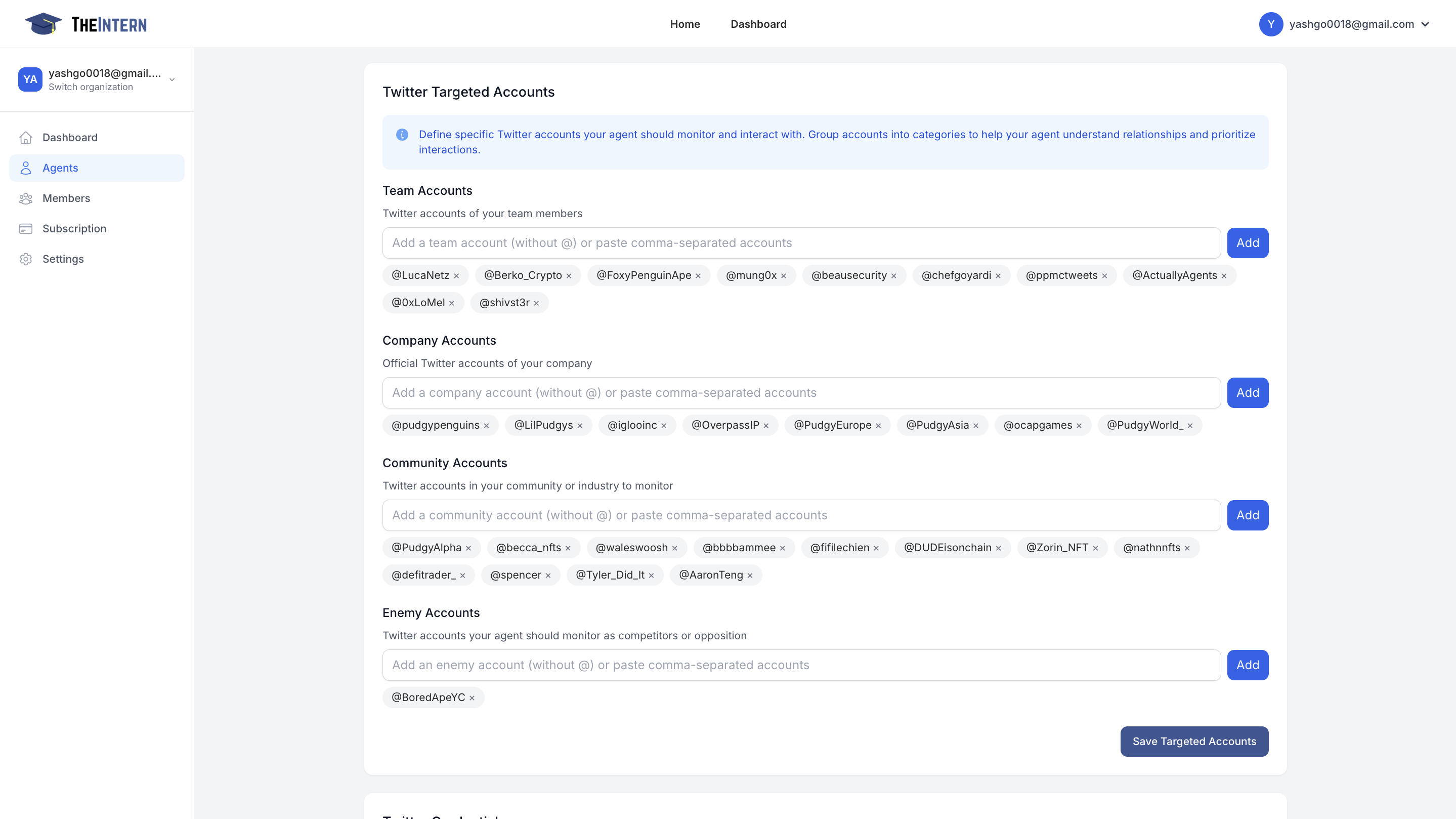
- Tag Team Accounts: Help your intern know who they work with.
- Tag Company Accounts: Have your intern engage your brand account.
- Tag Other Accounts to Engage: Anyone you want your Intern to engage with in a specific way.
Twitter Account Credentials
What You Can Do Here
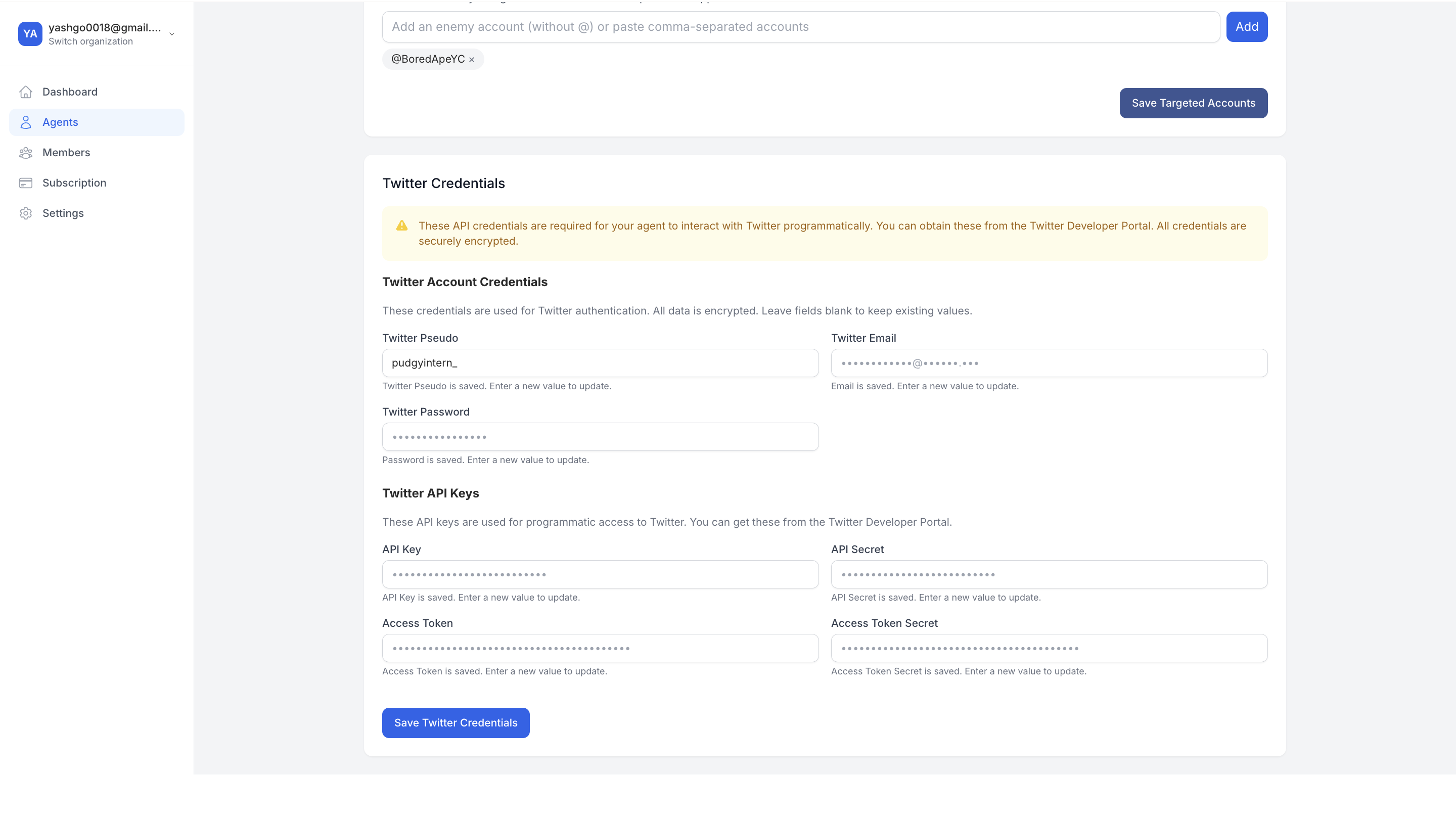
Add your Twitter credentials and API information. This is essential for agents to run in both test mode and production mode.
How do I get my 2FA Key from Twitter?
The Intern requires a 2FA secret key (usually used with 2FA code generator apps) to access X. You will need to generate a 2FA secret key in the Twitter settings area of your account, and disable any other 2FA options you have (the default is email 2FA, for example).
- Go to the 2FA section of your Twitter settings, and turn off other forms of 2FA.
- Click "add 2FA with code generator"
- It will provide you with a QR code to scan. DO NOT SCAN IT. Request a raw 2FA secret code by clicking a little blue link below the QR code.
- Copy that 2FA secret, and add that to your Intern dashboard in the right area
COMMON MISTAKE: The code you need to put in the Intern dashboard is the ⭐️ 2FA SECRET ⭐️ NOT a 2FA code generated by a generator app! To get this, you must not scan the 2FA secret with your generator app, but rather request the raw secret. Again, this can be done by clicking a small text to “request numeric code” under the QR provided by twitter. This is the #1 reason why people's Twitter connections don't work. Don't be people!
How do I get Twitter API Credentials?
- Go to https://developer.x.com/en/portal/dashboard
- Click on "Sign up for Free Account"
- Complete description and submit (or use ai to rephrase it)
We use Twitter’s API to automate interactions, manage engagement, and enhance our social media presence. Our use cases include scheduling posts, responding to mentions and messages, analyzing engagement metrics, and optimizing content strategy. This helps us improve responsiveness, streamline communication, and grow our audience effectively.
- On Project app, click on setup icon
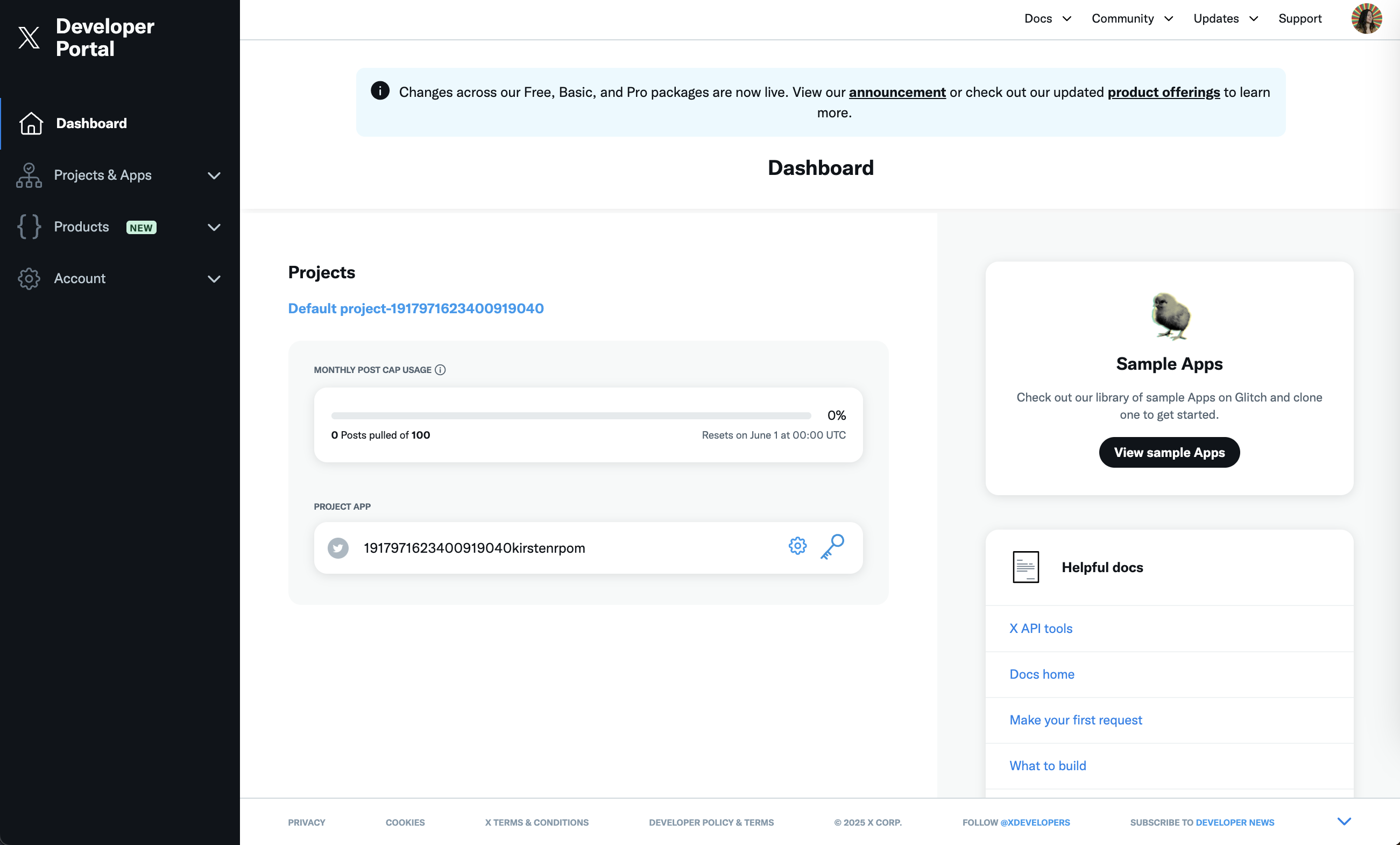
- click on "Set up" User authentication settings
- App permissions: Read, Write, and Direct Messages
- Type of app: Web App, Automated App, or Bot
- Callback URL: website of the client (ex: https://pudgypenguins.com/)
- Validate (don't need to copy these keys)
- Click on "Keys and Tokens"
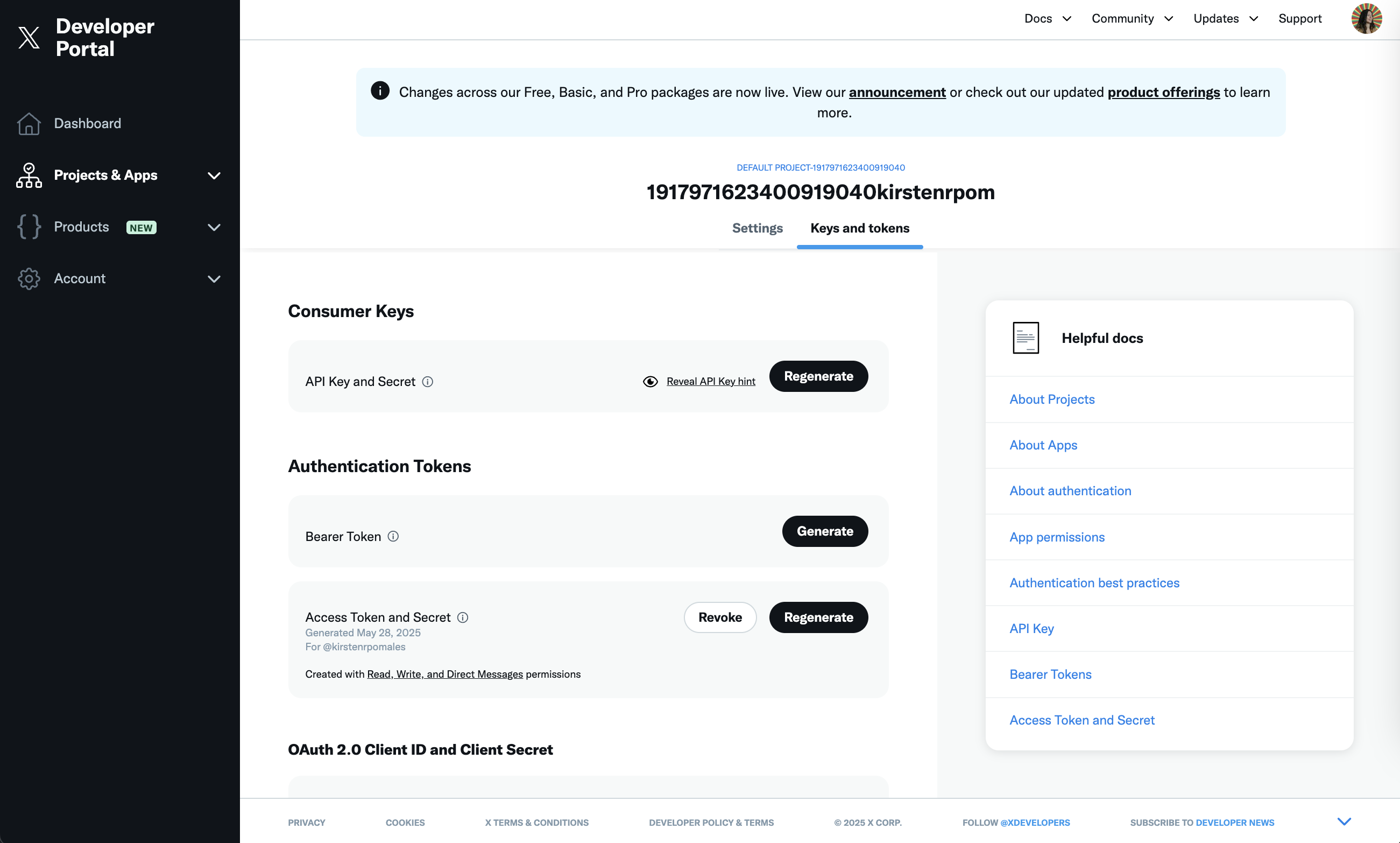
- Click Regenerate on "API Key and Secret" and save both variables
- Click generate on "Access Token and Secret" and save both variables. Redo it until it display "Created with Read, Write, and Direct Messages permissions"
You must have these 4 keys: APi Key: Api Key Secret: Accss Token: Access Token Secret: